Lab 20: Azure Policy
In this lab, you will learn how to use Azure Policy to enforce organizational standards and assess compliance at scale.
Tagging
- In the Azure portal, navigate to a resource or resource group that you want to apply a tag to.
- Click on "Tags" in the left-hand menu.
- Click on the "Add" button to add a new tag.
- Enter a name and value for the tag. For example, you could use "Environment" as the name and "Production" as the value.
- Click "Save" to apply the tag to the resource or resource group.
- Done.
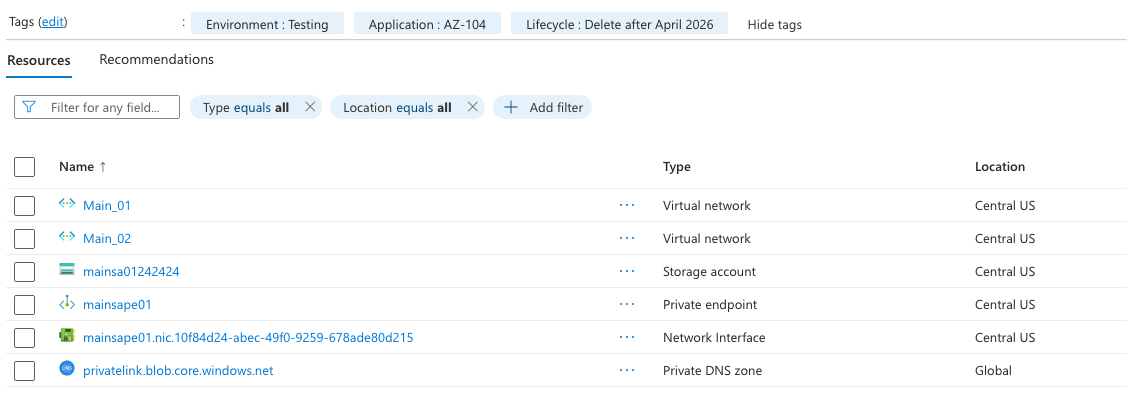
Enforce Tagging with Azure Policy
Notice that we have tags on the resource group and not on the resources?
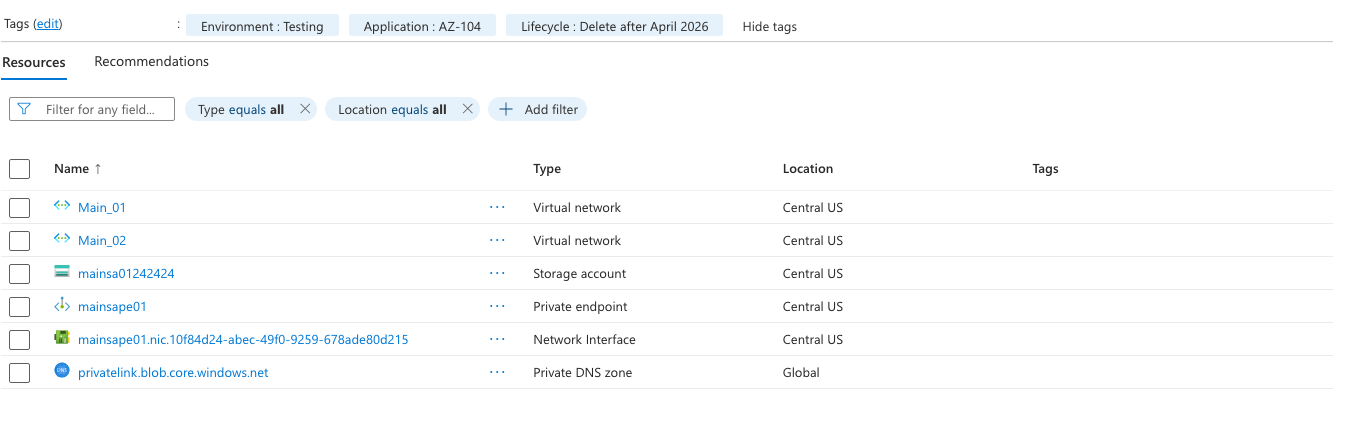
- In the Azure portal, navigate to "Policy" in the left-hand menu.
- Click on "Definitions" in the left-hand menu and then click on "New policy".
- In the "New policy" pane, select "Built-in" from the list of policy definitions.
- Search for "Inherit a tag from the resource group" and select the policy definition.
- Click "Assign" to assign the policy to a scope, such as a subscription or resource group.
- In the "Assign policy" pane, select the scope you want to assign the policy to and click "Next".
- In the "Parameters" section, select the tag name you want to enforce, such as "Environment", and click "Next".
- Review the settings and click "Create" to assign the policy.
- Done.
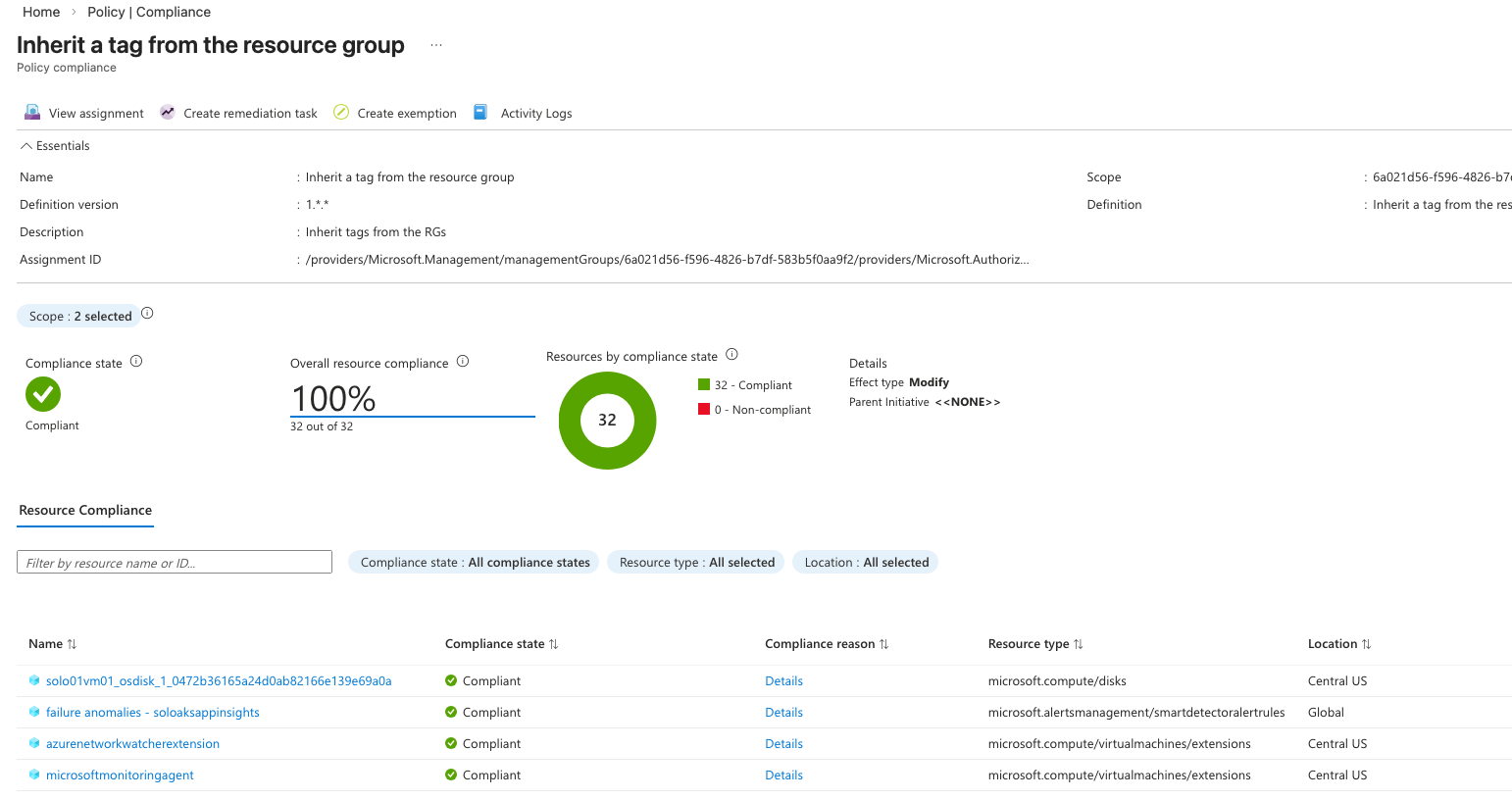 Mine shows that all resources are compliant, because a evaluation on the tags I just added hasn't run yet.
It may take a couple days for it to run, but once it does, you will see that the resources will be marked as non-compliant.
Mine shows that all resources are compliant, because a evaluation on the tags I just added hasn't run yet.
It may take a couple days for it to run, but once it does, you will see that the resources will be marked as non-compliant.
We will then run a remediation policy to bring the resources into compliance.
Enforce Required tags with Azure Policy
- In the Azure portal, navigate to "Policy" in the left-hand menu.
- Click on "Definitions" in the left-hand menu and then click on "New policy".
- In the "New policy" pane, select "Built-in" from the list of policy definitions.
- Search for "Require a tag on resources" and select the policy definition.
- Click "Assign" to assign the policy to a scope, such as a subscription or resource group.
- In the "Assign policy" pane, select the scope you want to assign the policy to and click "Next".
- In the "Parameters" section, select the tag name you want to require, such as "Environment", and click "Next".
- Review the settings and click "Create" to assign the policy.
- Done.
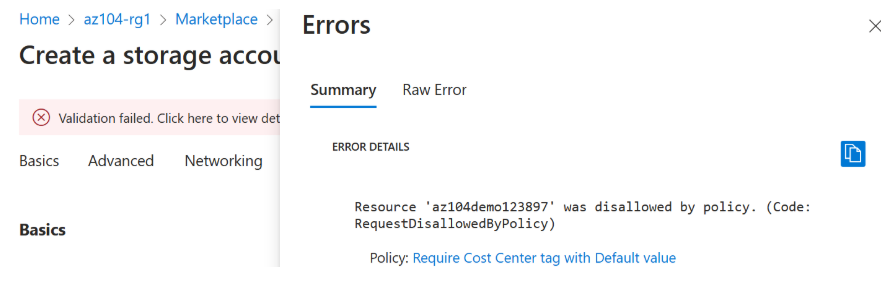
- Test the policy by trying to create a resource without the required tag. You should receive an error message indicating that the resource is non-compliant with the policy.
Resource Locks
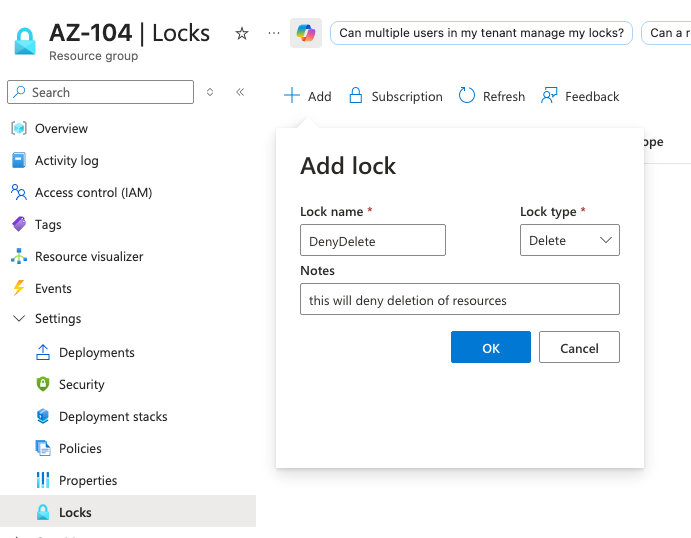
- In the Azure portal, navigate to a resource or resource group that you want to apply a lock to.
- Click on "Locks" in the left-hand menu.
- Click on the "Add" button to add a new lock.
- Enter a name for the lock and select the lock level, either "Read-only" or "Delete".
- Click "OK" to apply the lock to the resource or resource group.
- Wait for the lock to be applied.
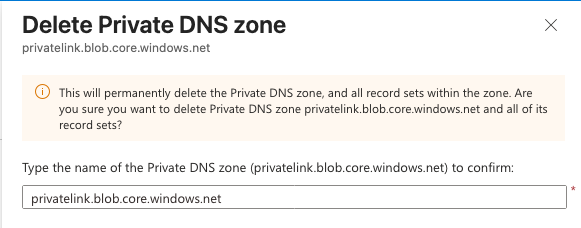
- Try to delete or modify the resource or resource group that you applied the lock to. You should receive an error message indicating that the resource is locked and cannot be modified or deleted.
- Done.
More learning
- What are the Azure PowerShell and CLI commands for adding and deleting resource locks on a resource group?
# Azure PowerShell
# Add a lock
New-AzResourceLock -LockName "ReadOnlyLock" -LockLevel ReadOnly -ResourceGroupName "MyResourceGroup"
# Delete a lock
Remove-AzResourceLock -LockName "ReadOnlyLock" -ResourceGroupName "MyResourceGroup"
# Azure CLI
# Add a lock
az lock create --name "ReadOnlyLock" --lock-type ReadOnly --resource-group "MyResourceGroup"
# Delete a lock
az lock delete --name "ReadOnlyLock" --resource-group "MyResourceGroup"
- What are the differences between Azure policy and Azure RBAC?
- Azure Policy is a service in Azure that allows you to create, assign, and manage policies that enforce rules and effects on your resources. It helps you ensure that your resources are compliant with your organizational standards and regulatory requirements.
- Azure RBAC (Role-Based Access Control) is a service in Azure that allows you to manage access to Azure resources by assigning roles to users, groups, or service principals. It helps you control who has access to your resources and what actions they can perform on those resources.
- In summary, Azure Policy is focused on enforcing compliance and governance rules on your resources
- Azure RBAC is focused on managing access to your resources. Both services are important for maintaining a secure and well-managed Azure environment, and they can be used together to ensure that your resources are both compliant and secure.
- What are the steps to enforce Azure policy and remediate resources which are not compliant?
- To enforce Azure Policy, you need to create a policy definition that specifies the rules and effects you want to enforce on your resources. You can use built-in policy definitions or create custom ones based on your specific requirements.
- Once you have a policy definition, you need to assign it to a scope, such as a subscription, resource group, or individual resource. This will allow Azure Policy to evaluate the resources within that scope against the policy definition and determine if they are compliant or non-compliant.
- If you have resources that are non-compliant with the assigned policy, you can use Azure Policy's remediation features to bring those resources into compliance. This typically involves creating a remediation task that specifies the actions to be taken on non-compliant resources, such as applying a specific tag or modifying a configuration setting.
- After creating the remediation task, you can run it to automatically bring non-compliant resources into compliance with the assigned policy. This helps ensure that your resources adhere to your organizational standards and regulatory requirements without requiring manual intervention for each non-compliant resource.
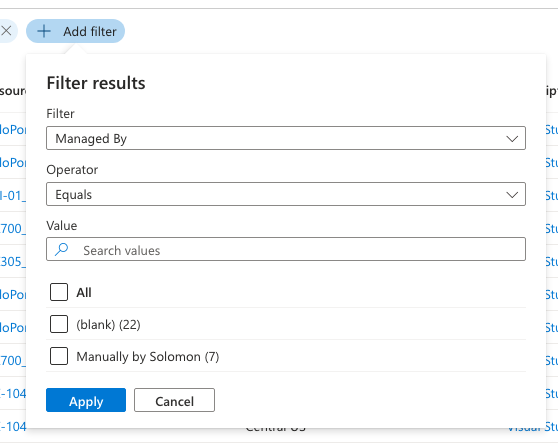
- How can I get a report of Azure resources with specific tags?
-
I like to do it via Resource Manager or Resource Graph.
-
To get a report of Azure resources with specific tags, you can use the following steps:
- In the Azure portal, navigate to "Resource Graph Explorer" in the left-hand menu.
- Click on "New Query" to create a new query.
- Use the following Kusto Query Language (KQL) query to filter resources based on specific tags:
Resources
| where tags['Environment'] == 'Production'- Replace 'Environment' with the name of the tag you want to filter by and 'Production' with the value of the tag you want to match.
- Click "Run Query" to execute the query and get a report of Azure resources that have the specified tag and value.
- You can further customize the query to include additional filters or select specific properties to display in the report.
-