Lab 2: Manage Subscriptions and RBAC
In this lab, you will learn how to manage subscriptions and role-based access control (RBAC) in Azure.
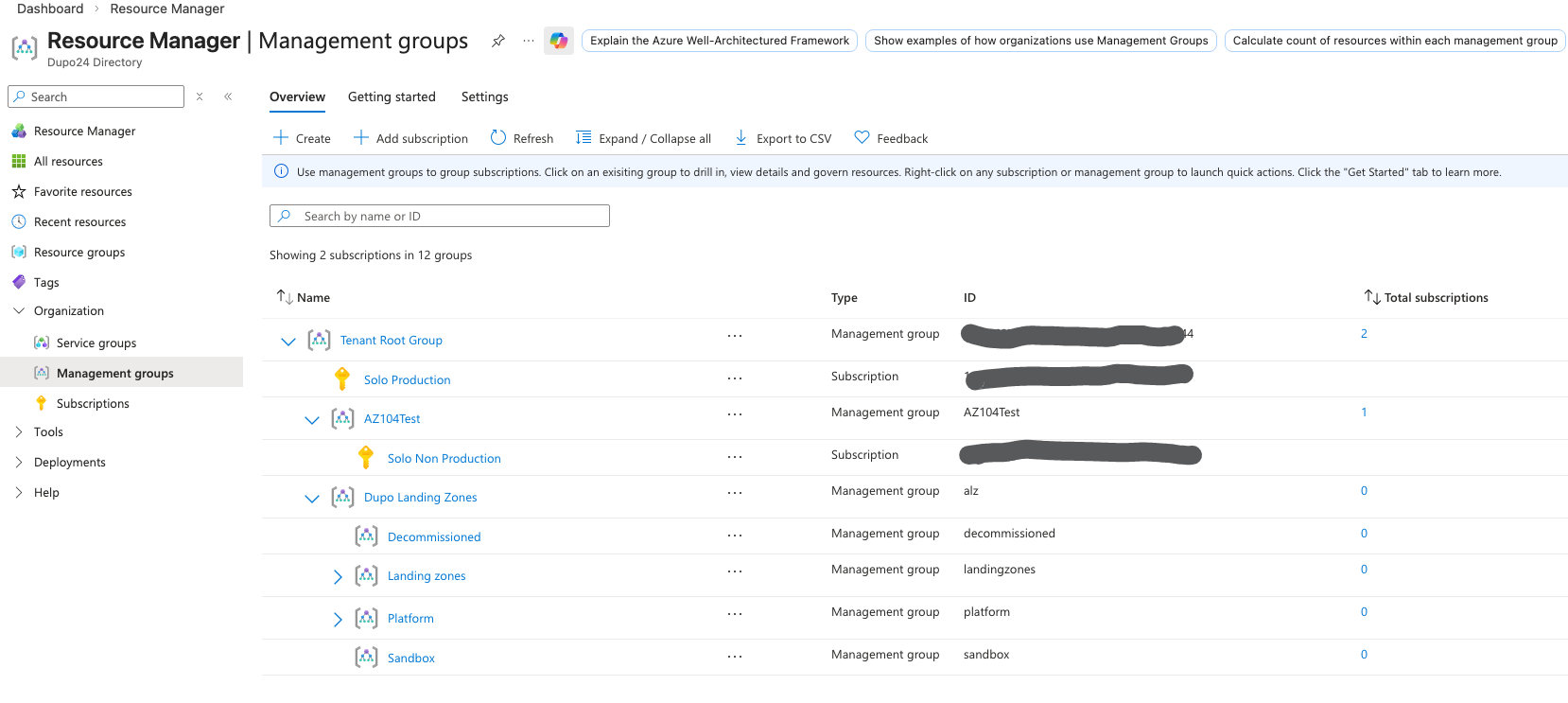
- Create a management group
- Create a subscription
- Create a resource group
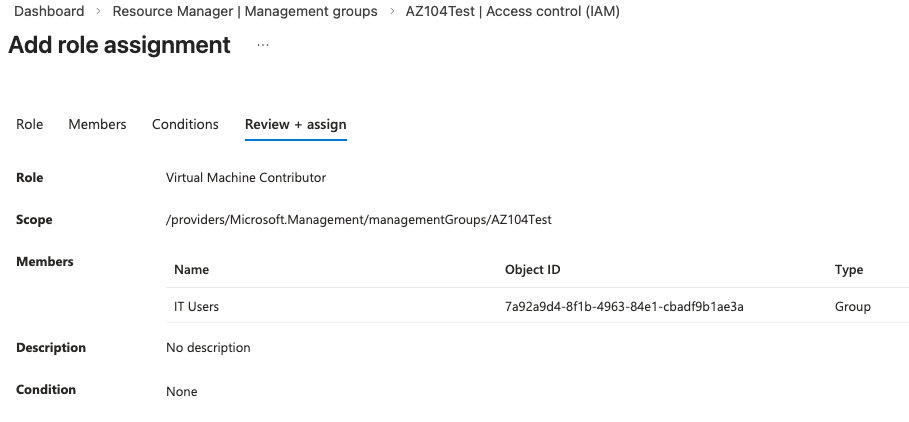
Add Role Assignment
- In the Azure portal, navigate to the resource or resource group that you want to assign a role to.
- Click on "Access control (IAM)" in the left-hand menu.
- Click on the "Add" button and select "Add role assignment".
- In the "Add role assignment" pane, select the role you want to assign from the list of roles.
- In the "Select" field, search for the user, group, or service principal you want to assign the role to and select their account.
- Click "Save" to assign the role to the user, group, or service principal.
- Done.
Create a custom role
Note: this needs a P1 or P2 license. Remember that for the exam.
- In the Azure portal, navigate to "Azure Active Directory" > "Roles and administrators".
- Click on the "New custom role" button.
- Follow the prompts to define the custom role, including specifying permissions and assigning it to users or groups.
- Click "Create" to create the custom role.
- Assign that role to the management group, subscription, or resource group that you want to manage access to.
- Done.
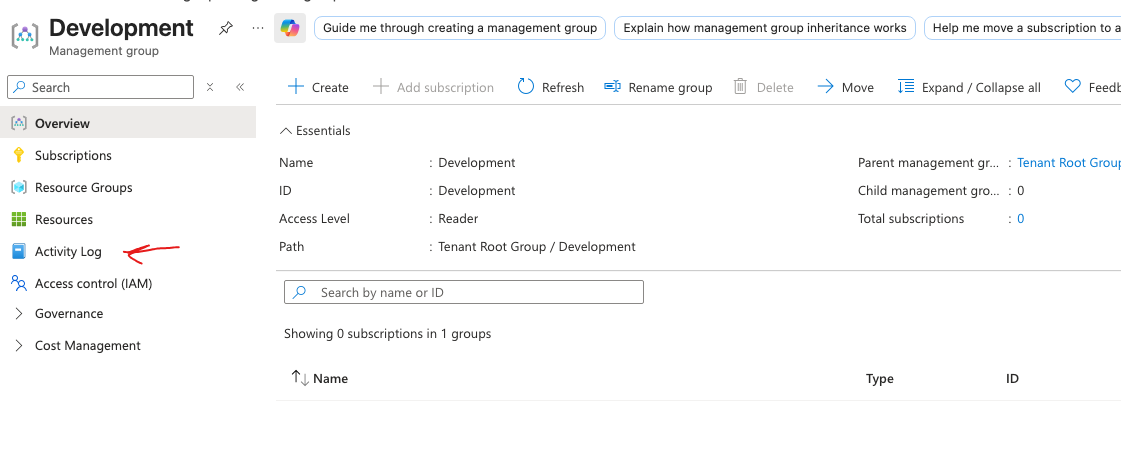
Monitor with the Activity Log
- In the Azure portal, navigate to a scope, such as your management group, subscription, or resource group.
- Click on "Activity Log" in the left-hand menu.
- Review the activities and events to monitor changes and access within the selected scope.
More learning
- What are some PowerShell and CLI commands to get information about subscriptions?
# Azure PowerShell
Get-AzSubscription
# Azure CLI
az account list
- What about management groups?
# Azure PowerShell
Get-AzManagementGroup
# Azure CLI
az account management-group list
- What if you need to loop through ALL of your subscriptions and management groups to get information about them?
Get-AzSubscription | ForEach-Object { Get-AzManagementGroup -SubscriptionId $_.Id }
# Azure CLI
az account list --query "[].{Name:name, Id:id, ManagementGroup:managementGroupId}"
- What is the format of the Azure RBAC JSON file? Remember that you can use this format to create custom roles in Azure RBAC. The JSON file defines the permissions and scope of the custom role, allowing you to tailor access control to your specific needs. Also, DataActions and regular Actions are for the data plane and the control plane, respectively. NotActions and NotDataActions can be used but don't.
{
  "Name": "Dupos Custom Role Name",
  "Description": "Description of the custom role",
  "Actions": [
    "Microsoft.Compute/virtualMachines/start/action",
    "Microsoft.Compute/virtualMachines/deallocate/action"
  ],
  "NotActions": [],
  "DataActions": [],
  "NotDataActions": [],
  "AssignableScopes": [
    "/subscriptions/{subscription-id}"
  ]
}
- What are the basic steps for creating a custom Azure RBAC role?
- Define the role name and description.
- Specify the permissions for the role by listing the allowed actions (Actions) and any explicitly denied actions (NotActions).
- Define the data plane permissions using DataActions and NotDataActions if applicable.
- Specify the scopes at which the role can be assigned using AssignableScopes, such as subscriptions, resource groups, or individual resources.
- Create the custom role in Azure using the Azure portal, Azure PowerShell, or Azure CLI.
- What is the difference between Azure RBAC roles and Microsoft Entra ID roles?
- Azure RBAC roles are used to manage access to Azure resources
- Microsoft Entra ID roles are used to manage access to Microsoft Entra ID itself.
- Azure RBAC roles include built-in roles such as Owner, Contributor, and Reader, which provide different levels of access to Azure resources.
- Microsoft Entra ID roles include built-in roles such as Global Administrator, User Administrator, and Application Administrator, which provide different levels of access to Microsoft Entra ID features and functionalities.
- Azure RBAC roles can be assigned at the subscription, resource group, or individual resource level
- Microsoft Entra ID roles are typically assigned at the tenant level.
- Azure RBAC roles are focused on managing access to Azure resources
- Entra ID roles are focused on managing access to identity and access management features within Microsoft Entra ID.